ReVision
Convert PDF & images to editable presentations — AI-powered seamless repair, human-guided precision
🖥 macOS Native
🔒 Fully Offline
🧠 Deep Learning Repair
✋ Manual Control
Convert PDF & images to editable presentations — AI-powered seamless repair, human-guided precision
Most conversion tools give you one-click export with no way to fix mistakes.
ReVision is different — after AI processes your files, you can review and manually correct every page.
Other tools can only handle solid-color backgrounds. ReVision restores backgrounds seamlessly, even when text overlaps photos or charts.
AI not perfect? Mark, erase, fine-tune — every detail is under your control before export.
Import multiple PDFs and images, drag to reorder, delete pages, append files — combine into one presentation.
OCR and AI processing run entirely on-device. Confidential files are never uploaded to the cloud.
Convert scanned PDFs to PPTX with real text, enabling AI tools to fully understand every page.
| Feature | ReVision | Typical Tools |
|---|---|---|
| Complex background repair (photos, charts) | ✅ Deep learning engine | ❌ Solid backgrounds only |
| Manual editing | ✅ Mark / Erase / Fine-tune | ❌ One-click export |
| Font size / color / bold detection | ✅ Precise detection | ⚠️ Partial support |
| Multi-file / page management | ✅ Drag to reorder, delete, append | ❌ Single file only |
| Privacy protection | ✅ Fully on-device | ⚠️ Often requires cloud upload |
Understand ReVision's interface at a glance

Toolbar overview:

Five steps from PDF to perfect presentation
Click + Files in the top-left to select PDF or image files. Supports selecting multiple files at once.
You can also right-click any PDF or image in Finder → "Open With" → ReVision to import directly.
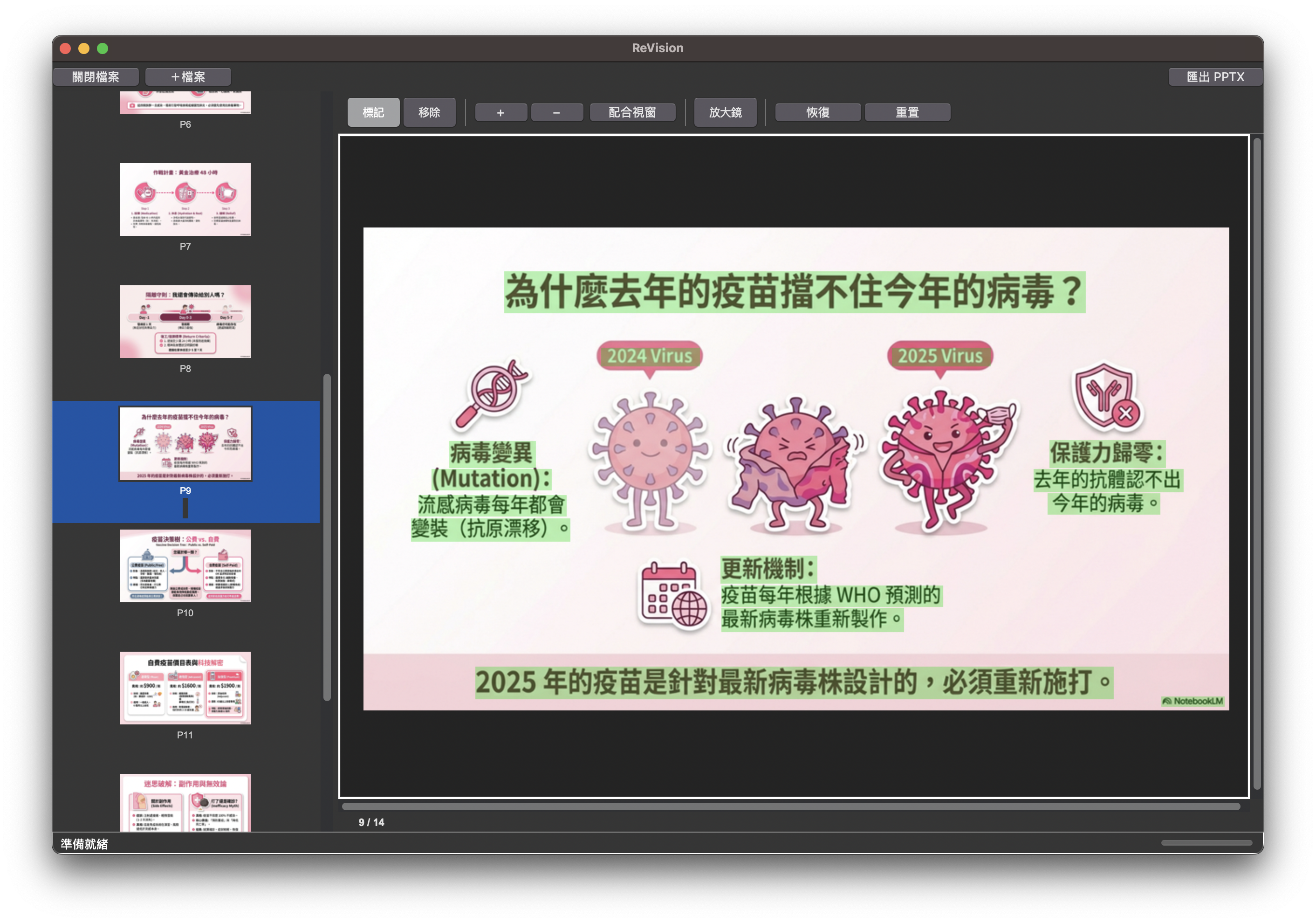
After import, ReVision automatically uses macOS native OCR to detect all text, highlighted with green masks.
Green areas will have text removed, backgrounds AI-repaired, then restored as editable text boxes.
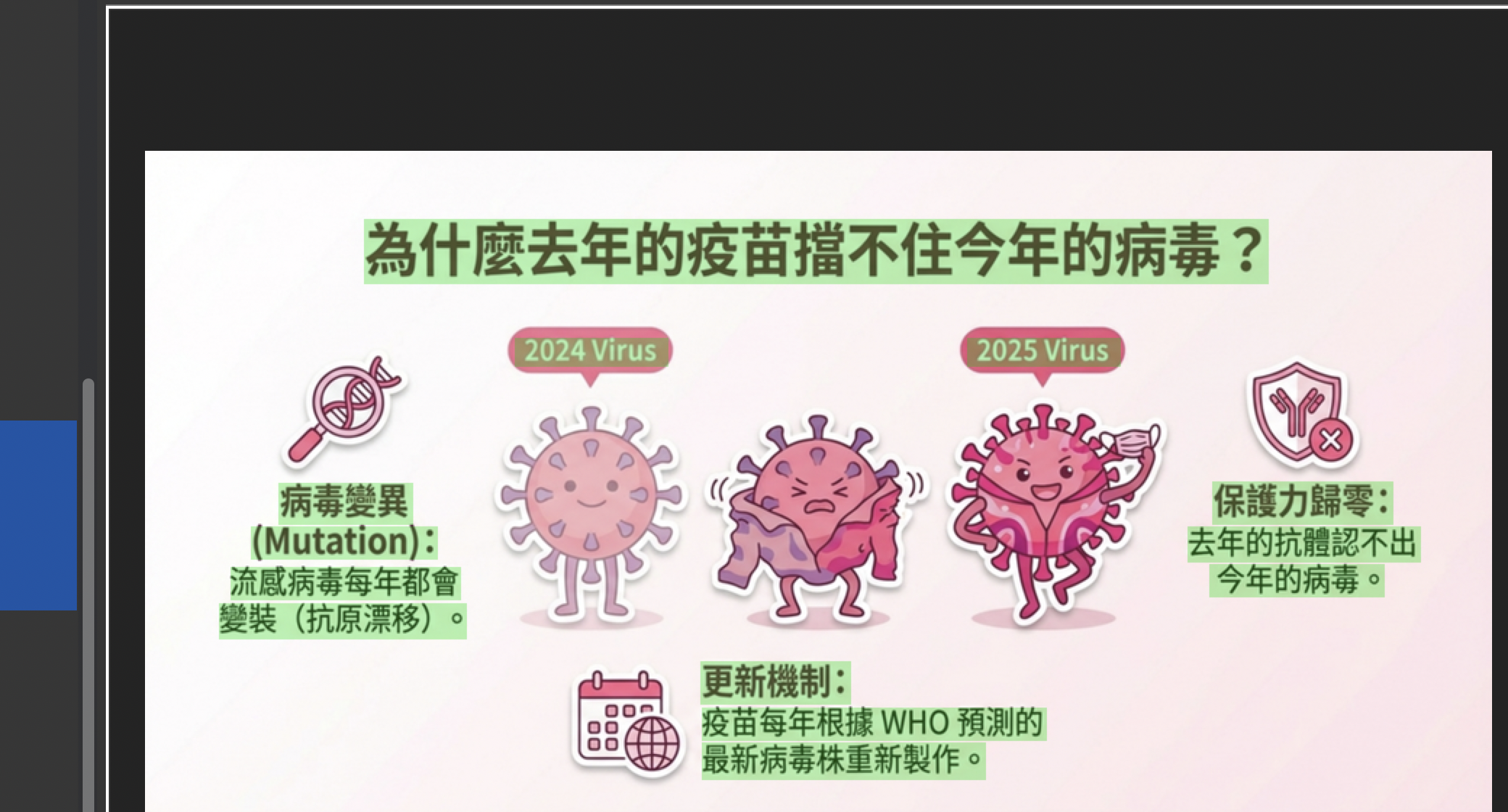
Zoomed in — the green rectangles are the text areas detected by OCR:
This is ReVision's core advantage — when AI detection isn't perfect, you can directly make manual corrections:

The left panel is your page management area:
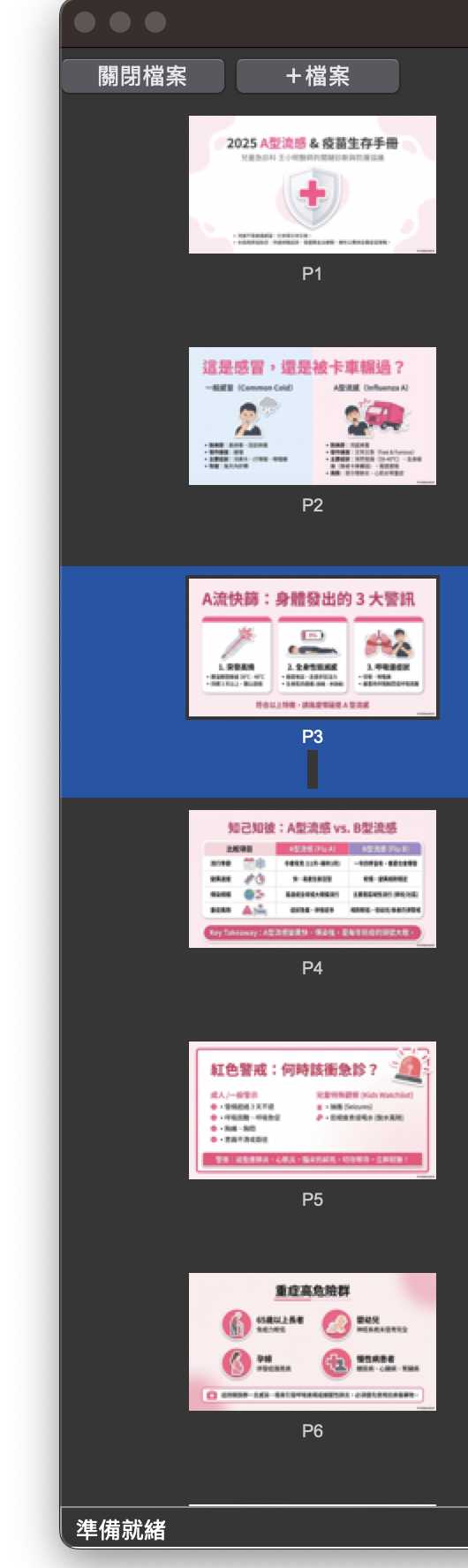
Once satisfied with every page, click Export PPTX in the top-right. ReVision processes each page:
Master shortcuts to accelerate your workflow
| Shortcut | Function |
|---|---|
| E | Toggle Mark ↔ Erase mode |
| W | Toggle Rectangle ↔ Brush mode |
| Z | Toggle Magnifier on / off |
| C | Cycle mask color (green → red → blue → ...) |
| R | Reset current page mask |
| Shortcut | Function |
|---|---|
| + or = | Zoom in |
| - | Zoom out |
| ⌘ 0 | Fit to Screen |
| Space | Fit to Screen |
| Scroll up / down | Zoom in / out |
| Hold ⌥ Option + drag | Pan |
| Shortcut | Function |
|---|---|
| ⌘ Z | Undo |
| ⇧ ⌘ Z | Redo |
| ↑ / ← | Previous page |
| ↓ / → | Next page |
| Enter | Save current page changes |
| Action | Function |
|---|---|
| Left-click drag | Rectangle select / brush draw mask |
| Scroll wheel | Zoom in / out |
| ⌥ Option + left-click drag | Pan |
| Right-click (or Ctrl+left-click) | Context menu |
| Hold Shift + drag | Constrain proportions |
After installing ReVision, for any PDF or image file in Finder:
If ReVision is not yet open, the system will automatically launch the app and import the file.
Scanned PDFs or screenshot presentations cannot be properly read by AI tools like NotebookLM. Use ReVision to convert them to PPTX with real text, enabling AI to fully understand every page.
ReVision automatically analyzes the background complexity of each text area and selects the best repair method:
| Background Type | Repair Method | Speed |
|---|---|---|
| Solid white background | Median color fill | Very fast |
| Gradient / simple colors | Telea interpolation | Fast |
| Photo / chart / complex texture | LaMa deep learning AI | ~10 sec/page |
The system selects automatically — no manual configuration needed.
OCR detects all text, including text within tables and charts. If you don't want to remove that text, use the "Erase" tool to remove the green mask from those areas, keeping them as part of the background.
When importing ultra-high-resolution images (e.g., camera photos at 4000x6000), AI repair automatically downscales to 2048px for processing then restores, ensuring export doesn't hang. Non-masked areas retain original quality.
Processing time per page depends on background complexity:
Input supports PDF, PNG, JPEG, BMP. You can mix different formats and export as a unified PPTX.
PDFs automatically detect page dimensions (A4, 16:9, 4:3, etc.). Non-standard sizes are automatically adapted.
Uses the macOS native Vision OCR engine, supporting Traditional Chinese, Simplified Chinese, English, Japanese, and many other languages. Recognition accuracy continues to improve with macOS updates.
Convert old lecture PDFs to editable presentations.
Turn class photos or screenshots into note presentations with NotebookLM.
Modify received PDF proposals, extract and recombine into new presentations.
Extract clean backgrounds from existing materials, get editable text and layouts.
See how ReVision converts PDFs and images into fully editable presentations in minutes
| Item | Requirement |
|---|---|
| Operating System | macOS 12.0 (Monterey) or later |
| Processor | Native Apple Silicon support (M1 / M2 / M3 / M4) |
| Input Formats | PDF, PNG, JPEG, BMP |
| Output Format | PPTX (Microsoft PowerPoint / Keynote / Google Slides) |
| Internet | Not required (fully offline) |